
Getting started
Which phone you need, what permissions the app asks for, and how to make your first take.
Which phone you need
CameraPro works on phones with Android 11 or later whose rear camera allows manual control: the app sets the ISO, shutter speed and white balance instead of leaving them to the phone. On Google Play the app only shows up for those phones. If you install it on one that does not qualify, a screen explains why and the camera does not open.
Each phone offers what its hardware allows: lenses, maximum ISO, resolutions and frame rates. This manual uses the Motorola Edge 50 Pro as the example.
Permissions
- Camera: to show the image, record and take photos.
- Microphone: for your videos' audio and the level meters.
- Nearby devices: to recognize an already paired gimbal.
Your first take
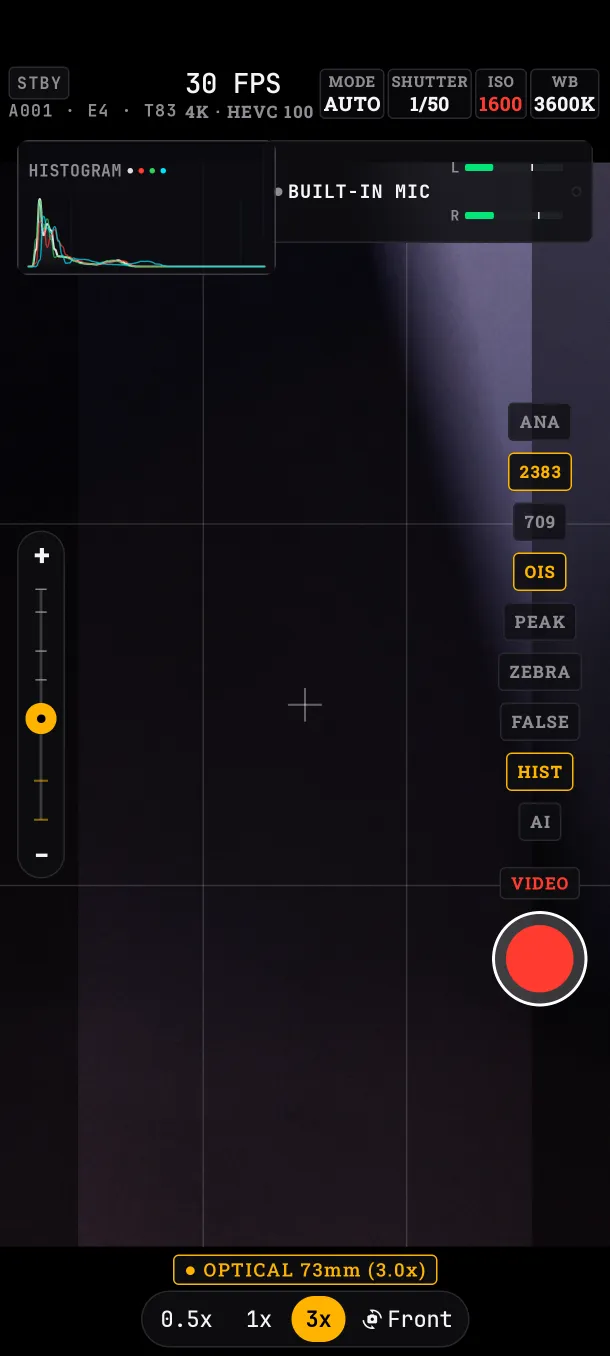
Freshly installed, the app starts fully automatic: AUTO exposure, automatic white balance (AWB) and autofocus (AF). Point and tap the red REC button to record; tap it again to stop. The volume keys do the same.
From then on, every setting you change is kept: close and reopen the app and it is as you left it. The only exception is AI, which starts off every time.
Where your files go
Videos and photos are saved in the phone's DCIM/CameraPro folder, with names taken from the slate (project, roll, scene and take). The app never overwrites a file. More in Video and photo.
What if…
- …I deny the camera permission: the app cannot open the camera. You can grant it later in Android's settings.
- …recording does not start: the notice
Recording could not start. Nothing was saved.appears and no empty file is left. Try again; if it repeats, try another format.