
Combinations
Cases where one control changes what another does. If something doesn't do what you expect, it is probably here.
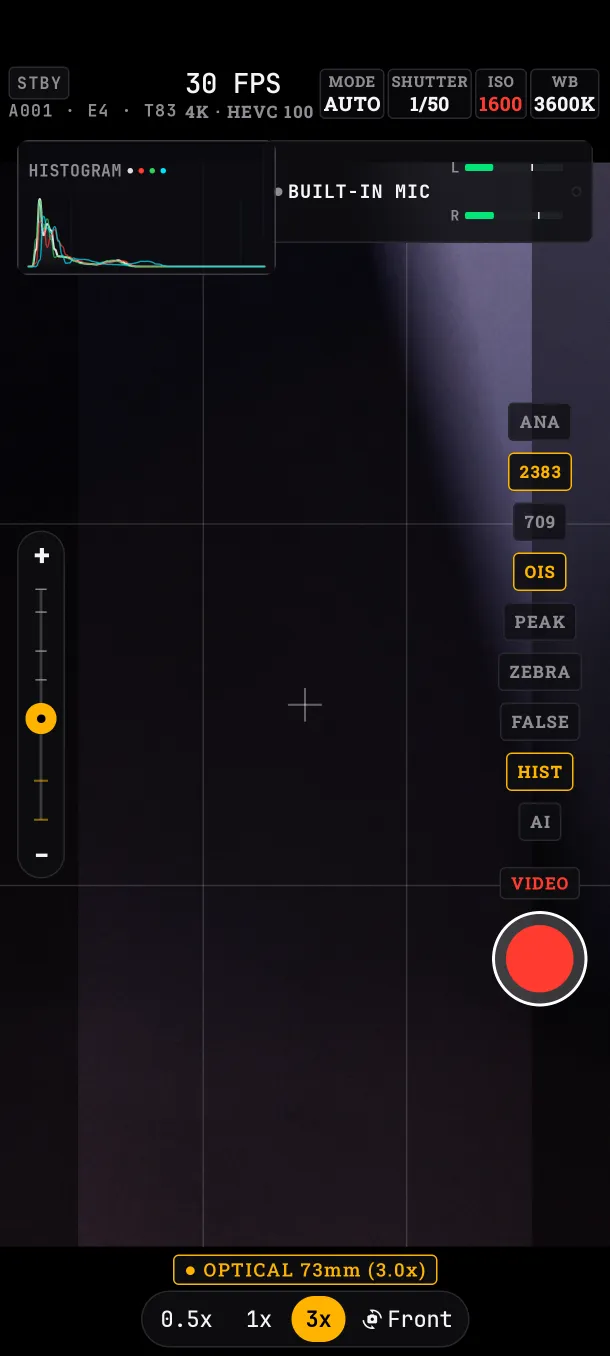
Mode × dials
In AUTO, the app sets ISO and shutter; in S you set the shutter; in M you set everything and EV becomes a meter.
Video × photo
Each keeps its own exposure mode. Anti-flicker only exists in video; photo adds slow speeds.
Tap × open panel
The same tap focuses, and also meters exposure if metering is on SPOT or the EV panel is open.
Format × frame rate × lens
If you switch to a format or a lens that doesn't support the current frame rate, it drops to the closest one by itself, and goes back to the one you chose when it can.
LUT × file
With MONITOR ONLY the LUT is viewfinder only. With BAKE IN REC it goes into the file, only at 1080p and 30 fps or less.
Profile × file
FLAT and LOG change the viewfinder; the file comes out without the flat curve, only with less sharpening and noise reduction.
AI × focus
Face tracking only acts with AF on AUTO, without AF-L and without a tapped point.
While recording
Format, frame rate, lens, slate and BAKE are locked. You can still move the zoom (within the active lens), focus and exposure.
Volume keys
With the app open, they record instead of changing the volume.