
Android 11+ · Camera2 Manual Cinema
CameraPro
A manual cinema camera for Android: you decide exposure, color, focus, and audio, and the phone records exactly that.
Meet the screen
Tap a number to see what each control does.
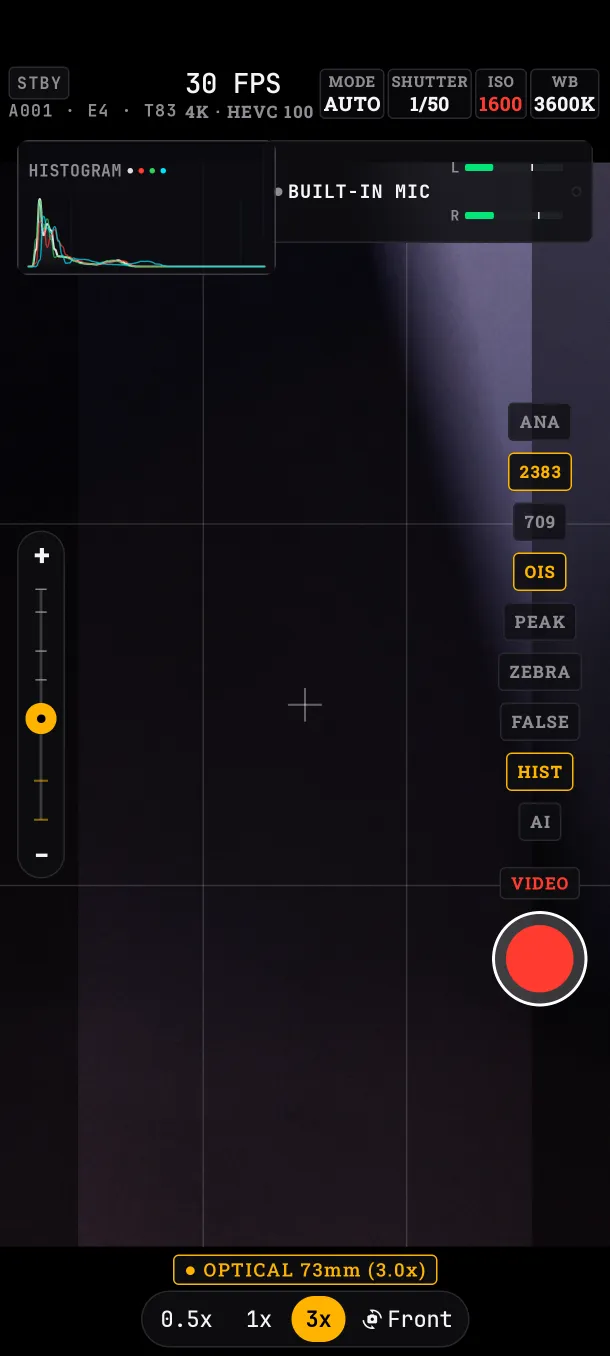
- Slate Roll, scene and take of the next file. Tap it to edit it and load presets. See in the manual
- Fps and format Frames per second, resolution and codec of the recording. See in the manual
- Exposure mode AUTO, S or M: who decides how bright the image is, the app or you. See in the manual
- Shutter How long each frame is exposed. It shapes motion and light. See in the manual
- ISO How sensitive the sensor is to light. More ISO, brighter and noisier. See in the manual
- White balance Color temperature in Kelvin, or AWB to let the camera measure it. See in the manual
- Histogram How the image's light spreads from shadows to highlights. See in the manual
- Audio Microphone in use and each channel's level. Red = clipping. See in the manual
- Tools Anamorphic, LUT, profile, stabilization, peaking, zebras, false color, histogram and AI. See in the manual
- Zoom Slide to zoom in or out smoothly. See in the manual
- Lenses The lenses your phone has, and the switch to the front camera. See in the manual
- Record Starts and stops recording. The volume keys do it too. See in the manual
Cinema recipes
Settings for common shooting situations. Each setting links to its explanation.
- Basic cinema lookThe base for almost everything: natural cinema motion and color that doesn't change mid-take.
- Indoors with window lightAn interview by a window: the face well exposed without blowing out everything outside.
- Full sun, no ND filterLots of sun and no ND filter (a filter that darkens the image without changing its color).
- Night and low lightStreets at night or dark interiors: getting everything out of the sensor without dropping frames.
- For grading laterYou'll do the final color in Final Cut or another editor and want the file with more room.
- Rack focus with A/B pointsPulling focus from one person to another mid-take, the same way every time.
- Anamorphic adapterAn anamorphic adapter in front of the lens for the widescreen cinema format.
- Same look across a seriesA series of interviews in different homes, with your own lights, that has to look the same.
Combinations worth knowing
- In AUTO the app sets ISO and shutter; in S you set the shutter; in M you set everything.
- FLAT, LOG and LUTs on MONITOR ONLY change the viewfinder, not the file.
- While recording, the zoom doesn't switch lens and the format stays fixed.
Manual
Which phone you need
Android 11 or later, with a rear camera that allows manual control. On Google Play the app only shows up for those phones. Each phone offers what its hardware allows: lenses, maximum ISO, resolutions and frame rates.
Direct inquiry